

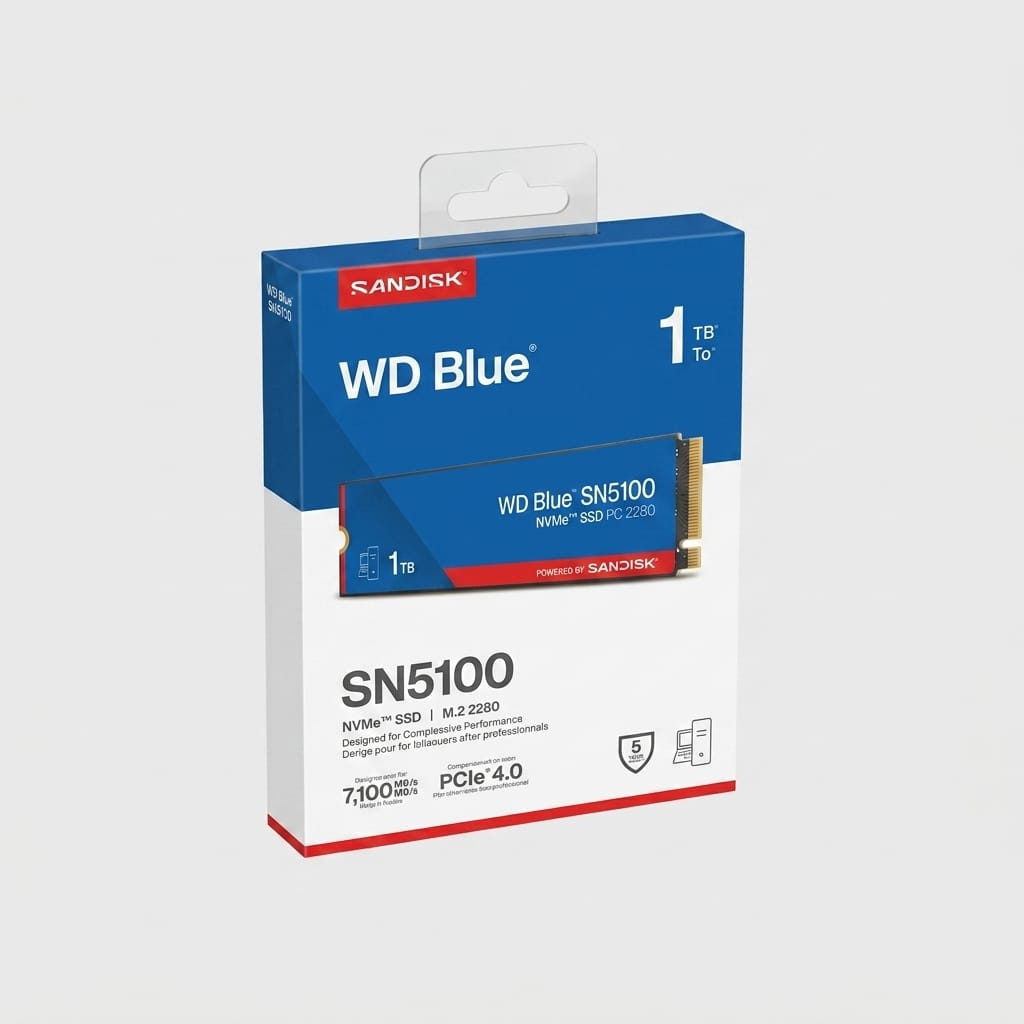
If you’re buying an SSD, you’ve probably noticed that some are called SATA SSDs while others are NVMe SSDs.
They both use flash memory. They both make a computer feel much faster than an old hard drive. And they can even come in similar-looking M.2 designs.
So why does one say 550 MB/s while another claims 7,000 MB/s or more?
The difference comes down to how the SSD connects to your computer and how it communicates with the system. SATA SSDs use the SATA interface, while NVMe SSDs are designed for modern flash storage and typically communicate over PCIe.
For most people, the buying decision is actually pretty simple. The tricky part is knowing when the extra performance of NVMe matters and when a SATA SSD is perfectly good.
NVMe vs SATA SSD: Quick Comparison
| Feature | SATA SSD | NVMe SSD |
|---|---|---|
| Interface | SATA | PCIe |
| Protocol | SATA/AHCI | NVMe |
| Common form factor | 2.5-inch, M.2 SATA | M.2 and other formats |
| Typical sequential speed | Around 500–550 MB/s | Several GB/s, depending on PCIe generation and drive |
| Latency | Higher | Lower |
| Best for | Everyday use, older PCs, budget upgrades | New PCs, gaming, large files and demanding workloads |
| Compatibility | Very broad | Requires compatible PCIe/NVMe support |
In short: SATA is older and slower. NVMe is newer, faster and designed around the way modern SSDs work.
But there’s more to it than the speed printed on the box.
What Is a SATA SSD?
SATA stands for Serial ATA. It has been used in computers for years for connecting storage devices.
The current SATA Revision 3.0 interface, commonly called SATA 6 Gb/s, has a theoretical transfer rate of 6 gigabits per second, or about 600 MB/s.
Because of that interface limit, many SATA SSDs top out at roughly 500–550 MB/s for sequential reads and writes.
That may look slow compared with today’s NVMe drives, but a SATA SSD can still transform an older computer.
If you’re replacing an HDD, you’ll notice the difference when:
- Windows starts up
- Applications open
- Files are accessed
- The computer wakes from sleep
- You move around the operating system
For an older laptop or desktop, upgrading from an HDD to a SATA SSD can be a much bigger change than upgrading from SATA to NVMe.
SATA SSDs come in different shapes
The two common formats are:
2.5-inch SATA SSD
These are the familiar rectangular drives found in many laptops and desktops. They connect using SATA data and power connections.
M.2 SATA SSD
These are much smaller and fit into an M.2 slot, but they still use the SATA interface.
And that’s where things get confusing.
M.2 does not automatically mean NVMe.
M.2 describes the physical form factor. It doesn’t tell you which storage protocol the drive uses.
What Is an NVMe SSD?
NVMe stands for Non-Volatile Memory Express.
Unlike SATA, NVMe was designed specifically for modern non-volatile memory and was built around PCIe-based storage. The NVMe specification is designed to provide a more efficient and scalable interface for SSDs, with lower latency than legacy interfaces such as SATA.
That’s why NVMe drives can be so much faster.
Rather than being limited by the relatively narrow SATA interface, an NVMe SSD can use PCIe bandwidth.
NVMe also supports a highly parallel I/O architecture, which is useful when a computer is handling many storage operations at once.
You don’t need to understand the technical details to buy an SSD. The important point is this:
NVMe was built for SSDs. SATA wasn’t.
Why Is NVMe Faster Than SATA?
The simplest explanation is bandwidth.
SATA 6 Gb/s has a theoretical interface limit of around 600 MB/s.
PCIe provides considerably more bandwidth, and each newer PCIe generation increases the available signaling rate.
| PCIe Generation | Signaling Rate per Lane |
|---|---|
| PCIe 3.0 | 8 GT/s |
| PCIe 4.0 | 16 GT/s |
| PCIe 5.0 | 32 GT/s |
PCI-SIG lists these rates for the respective PCIe generations.
Because NVMe SSDs can use PCIe, their theoretical performance is far beyond what SATA can provide.
That’s why you may see consumer SSD specifications such as:
- SATA SSD: ~500–550 MB/s
- PCIe Gen 3 NVMe: ~3,000 MB/s or more
- PCIe Gen 4 NVMe: ~5,000–7,000+ MB/s
- PCIe Gen 5 NVMe: 10,000 MB/s or more on some high-end drives
These figures vary by model. The SSD controller, NAND, PCIe generation, number of lanes, firmware and workload all affect actual performance.
Does NVMe Make Your PC 10× Faster?
This is one of the most common misunderstandings about SSDs.
You might see an NVMe SSD advertised as being 10 times faster than a SATA SSD.
That can be true if you’re comparing maximum sequential transfer speeds.
But that doesn’t mean your computer will feel 10 times faster.
Think about what happens when you open a browser.
The computer isn’t necessarily reading several gigabytes of data continuously from the SSD. Other parts of the system are involved too.
For everyday tasks such as:
- Web browsing
- Microsoft Office
- PDFs
- Basic accounting software
- Video calls
a good SATA SSD is already fast.
The difference between SATA and NVMe becomes more useful when you’re regularly moving or processing large amounts of data.
That’s where NVMe has room to stretch its legs.
When Does NVMe Actually Make a Difference?
NVMe is particularly useful for storage-heavy workloads such as:
Large file transfers
If you’re regularly moving large video files, backups or project folders, the additional bandwidth can make a noticeable difference.
Video editing
Large video projects can involve substantial amounts of data being read and written. A faster NVMe drive gives the system much more storage bandwidth to work with.
Professional applications
Some professional workloads generate enough storage activity to benefit from NVMe’s higher throughput and lower latency.
Virtual machines
Running several virtual machines can create a lot of simultaneous storage activity. NVMe’s architecture is better suited to this kind of workload.
Large databases and datasets
Applications working with large datasets can also benefit from faster storage, depending on how the workload is structured.
For ordinary office work, though, spending considerably more for the fastest NVMe drive available may not give you much in return.
NVMe vs SATA for Gaming
If you’re building a new gaming PC, NVMe is generally the better choice when your system supports it and the price makes sense.
Modern games can involve large amounts of data, and faster storage can help with storage-heavy workloads.
But there’s an important distinction.
Going from an HDD to an SSD is usually a much bigger upgrade than going from a SATA SSD to an NVMe SSD.
So if you already have a decent SATA SSD, don’t expect an expensive NVMe drive to suddenly transform every game.
If you’re buying storage for a new gaming PC, however, NVMe is an easy choice when the cost difference is reasonable.
NVMe vs SATA for Office and Everyday Use
For most home and office users, you don’t need an extremely fast SSD.
If your computer is mainly used for:
- Browsing
- Word and Excel
- Accounting
- PDFs
- Video meetings
- Basic business software
a SATA SSD can handle the job very well.
If you’re buying a new computer, NVMe is usually the more sensible choice because modern systems commonly support it.
But don’t assume you need a premium Gen 5 NVMe drive just to open spreadsheets faster.
For everyday computing, the difference between a mid-range NVMe drive and a good SATA SSD may be much less noticeable than the numbers on the specification sheet suggest.
NVMe vs SATA for Video Editing
Video editing is a different story.
Large video files put more pressure on storage, particularly when you’re working with high-resolution footage or large project files.
A fast NVMe SSD can provide much higher throughput than SATA, which can help with storage-heavy workflows.
That doesn’t make SATA SSDs unsuitable for video editing. It simply means NVMe gives you more storage performance to work with.
If video production is part of your daily workload, the extra cost of NVMe can make more sense.
PCIe Gen 3 vs Gen 4 vs Gen 5 NVMe
Buying an NVMe SSD isn’t the end of the decision.
You’ll also see PCIe Gen 3, Gen 4 and Gen 5.
These refer to the PCIe generation used by the SSD.
PCIe Gen 3
Older, but still plenty fast for many computers.
For general use, a good Gen 3 NVMe SSD can be more than enough.
PCIe Gen 4
A popular option for modern systems.
It provides twice the PCIe signaling rate of Gen 3 and can deliver much higher SSD performance. PCI-SIG specifies 16 GT/s per lane for PCIe 4.0 compared with 8 GT/s for PCIe 3.0.
For many buyers, Gen 4 offers a sensible balance between performance and price.
PCIe Gen 5
This is where things get serious.
PCIe 5.0 increases the signaling rate to 32 GT/s per lane, double that of PCIe 4.0.
High-end Gen 5 SSDs can therefore reach very high sequential speeds.
But there’s a trade-off: faster drives can require more attention to cooling, and your computer needs to support the relevant PCIe generation.
For everyday browsing and office work, you probably don’t need the fastest Gen 5 SSD you can find.
Is Every M.2 SSD an NVMe SSD?
No.
This is probably the most important thing to remember when shopping for an M.2 SSD.
M.2 = physical form factor.
NVMe = storage protocol.
So you can have an:
- M.2 SATA SSD
- M.2 NVMe SSD
They may look similar, but they use different interfaces.
Before buying an M.2 SSD, check your laptop or motherboard specifications. Make sure the slot supports the type of SSD you’re considering.
Can You Replace a SATA SSD With an NVMe SSD?
It depends on your computer.
If your laptop or motherboard has an M.2 slot that supports PCIe/NVMe, you may be able to install an NVMe SSD.
But an NVMe SSD cannot simply be plugged into a standard SATA port.
Before buying, check:
- Does the computer have an M.2 slot?
- Does that slot support NVMe/PCIe?
- Which PCIe generation does it support?
- What M.2 drive length does it accept?
- Can the system boot from NVMe?
- Does using the M.2 slot disable or share bandwidth with another storage port?
A quick check of your motherboard or laptop specifications can save you from buying an incompatible drive.
Is NVMe More Reliable Than SATA?
Not automatically.
NVMe and SATA are interfaces and protocols. They don’t, by themselves, tell you how reliable a particular SSD will be.
The actual drive matters.
Things such as the NAND, controller, firmware, thermal management and overall drive design can affect reliability and endurance.
So don’t choose an SSD simply because it says NVMe on the packaging.
A good SATA SSD can be a better buy than a poor-quality NVMe drive.
Which SSD Should You Buy?
Here’s the practical answer.
Choose a SATA SSD if:
- You’re upgrading an older computer.
- Your system doesn’t support NVMe.
- You want an affordable storage upgrade.
- You need a 2.5-inch drive.
- Your workload is mostly everyday computing.
- You’re replacing an HDD and want a major performance improvement without spending too much.
Choose an NVMe SSD if:
- You’re building a new PC.
- Your laptop or motherboard supports NVMe.
- You work with large files.
- You edit photos or videos.
- You use demanding applications.
- You’re building a gaming PC.
- The price difference between comparable SATA and NVMe drives is small.
NVMe vs SATA SSD: Which Is Better?
NVMe is faster. SATA is still useful.
If you’re buying a new computer and it supports NVMe, an NVMe SSD is usually the better choice. You get substantially more bandwidth and a storage interface designed around modern SSDs.
If you’re upgrading an older PC, don’t dismiss SATA.
A good SATA SSD can take an old HDD-based computer and make it feel dramatically more responsive. In that situation, SATA may be exactly what you need.
And if you’re already using a SATA SSD, you don’t necessarily need to replace it just because NVMe drives have much higher numbers on the box.
The right choice depends on your computer, your workload and your budget.
The simple rule
Replacing an HDD? A SATA SSD is already a big upgrade.
Building a new PC? Go with NVMe if your system supports it.
Editing large video files or handling demanding workloads? NVMe makes more sense.
Doing everyday office work? Don’t overspend just for a bigger speed number.
Buying an M.2 drive? Check whether your system supports SATA or NVMe before you order.
That’s the real difference between NVMe and SATA SSDs. It’s not just about which one has the bigger number. It’s about buying the storage that matches the computer you have and the work you actually do.
Frequently Asked Questions
Is NVMe better than SATA SSD?
Yes, in terms of interface bandwidth and latency, NVMe is generally the faster technology. NVMe was designed specifically for SSD storage and commonly uses PCIe, while SATA SSDs are limited by the SATA interface.
Is SATA SSD still worth buying?
Yes. SATA SSDs remain useful for older computers, systems without NVMe support and users who want an affordable upgrade from an HDD.
Is M.2 the same as NVMe?
No. M.2 describes the physical form factor. An M.2 SSD can use either SATA or NVMe, so compatibility should be checked before buying.
Which is faster, NVMe or SATA SSD?
NVMe is faster. SATA 6 Gb/s has a theoretical interface limit of about 600 MB/s, while PCIe-based NVMe drives can reach several GB/s depending on the PCIe generation and SSD.
Should I buy PCIe Gen 4 or Gen 5 NVMe?
For most people, Gen 4 offers plenty of performance. Gen 5 is worth considering when you have compatible hardware and a workload that can take advantage of its higher bandwidth.
Can I use an NVMe SSD in any M.2 slot?
No. An M.2 slot may support SATA, NVMe, or both. Always check the motherboard or laptop specifications first.
Sources
- NVM Express — NVMe Base Specification and architecture.
- SATA-IO — SATA Revision 3.0 and SATA 6 Gb/s specifications.
- SATA-IO — SATA naming and interface guidelines.
- PCI-SIG — PCIe signaling rates across generations.